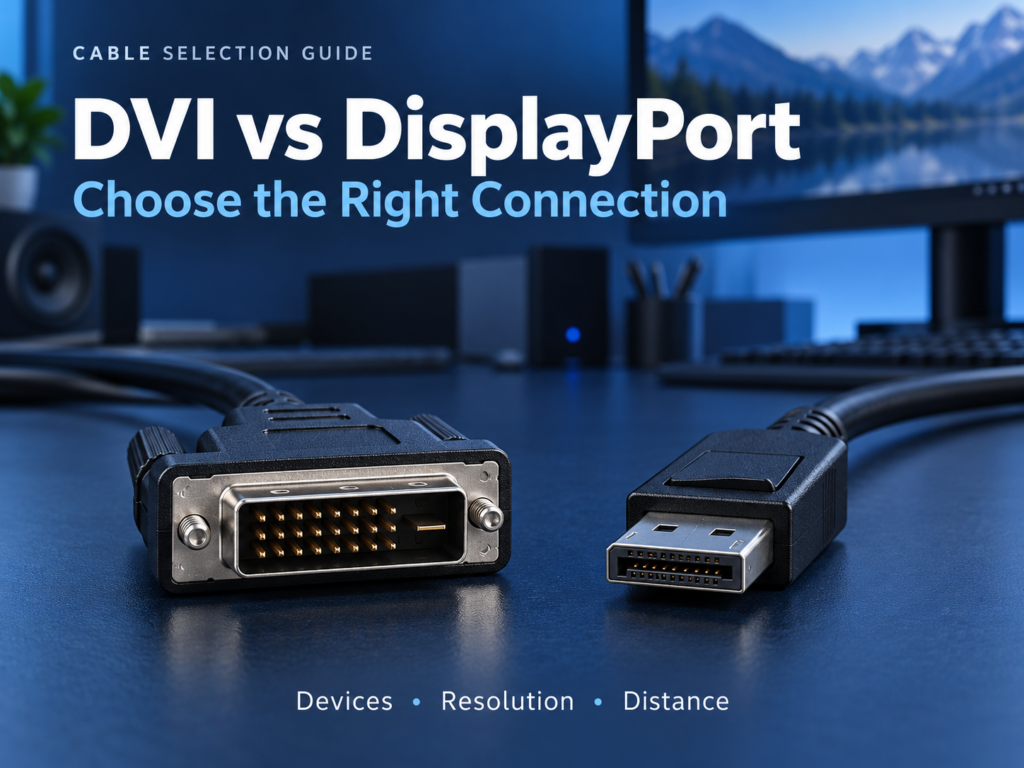
The choice between DVI and DisplayPort starts with the equipment you need to connect. If a new workstation and display both have suitable DisplayPort ports, start by evaluating a direct connection. An existing display that already meets the task through DVI can also remain in service. When the ports differ, establish the conversion direction and video mode before choosing the cable.
DisplayPort can support higher bandwidth, multiple displays, and audio and video over one connection. Those capabilities do not mean that adding an adapter will give an older DVI monitor higher refresh rates or additional functions.
The main differences between the interfaces
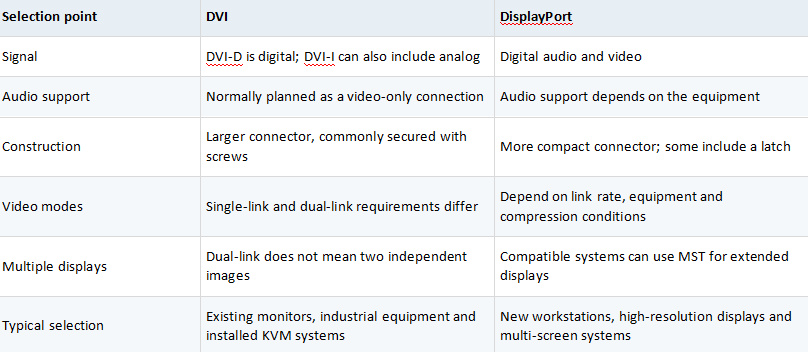
Analog pins on a DVI connector do not provide active signal conversion. A DisplayPort connector’s shape does not reveal its actual link speed either. Check the equipment specifications rather than relying on appearance alone.
Compare resolution and refresh rate with bandwidth
The table separates raw aggregate rates from payload capacity after line coding. These figures do not account for every protocol or video-timing overhead, and they do not guarantee that every device or cable supports the listed link rate.
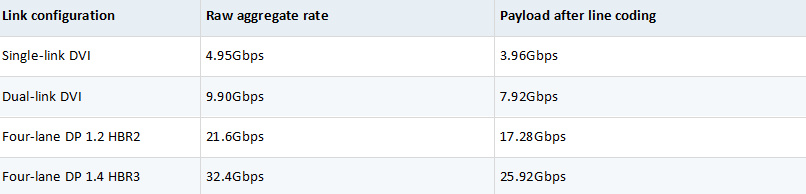
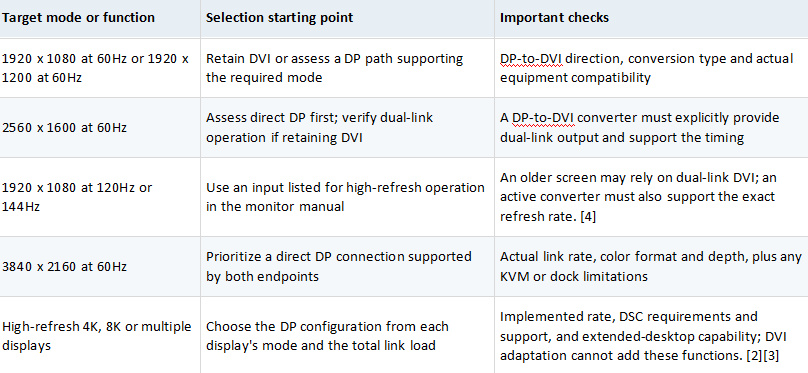
Common DVI reference modes are 1920 x 1200 at 60Hz for single-link and 2560 x 1600 at 60Hz for dual-link, subject to the equipment’s supported timings. [1] For DisplayPort, assess resolution, refresh rate, color depth, color format and whether Display Stream Compression (DSC) is required. A DP 1.4 label alone does not mean that every device supports the same 8K mode.
For example, HBR3’s 8.1Gbps is a raw per-lane rate; four lanes total 32.4Gbps. Do not compare the per-lane figure directly with another interface’s aggregate link rate. Newer DisplayPort UHBR classes provide higher capabilities, but check the rate actually implemented by the equipment rather than the version name alone.
Why an older 144Hz monitor may drop to 60Hz after a GPU upgrade
The new connection may not preserve the link the monitor originally required. A display that achieves a high refresh rate through dual-link DVI will not necessarily do so through any DisplayPort-to-DVI cable.
BenQ specifies dual-link DVI for 144Hz on the XL2411, while the XL2411P can use either dual-link DVI or DisplayPort 1.2. [4] Similar models and different inputs can therefore have different capabilities.
Before purchasing, identify the exact input that supports the old monitor’s high-refresh mode. Then confirm that the GPU output, converter and cable provide that mode. A connector with a full set of pins is not proof of dual-link performance.
Choose the correct conversion direction
What DP++ can do
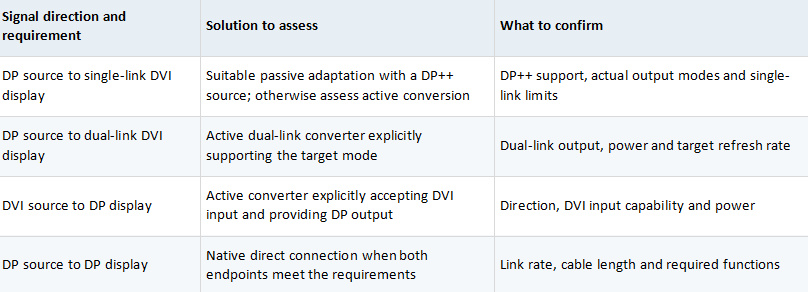
Some DisplayPort sources can provide a DVI-compatible signal through dual-mode output, allowing a suitable passive adapter to be used. This is the common DP++ scenario. If the required dual-mode output is unavailable, active conversion is needed.
Even with DP++, do not assume that a standard passive adapter preserves dual-link DVI. NVIDIA’s recommended adapter table lists single-link passive and dual-link active products separately.
Active conversion still has limits
Active converters have their own input, output and timing limits. Some active DP-to-dual-link-DVI products specify 2560 x 1600 at 60Hz and particular high-refresh modes, but this does not mean they support every 144Hz monitor. [7] Check the exact target mode and validate it with the intended equipment.
The reverse direction, from a DVI source to a DP display, requires a product designed for DVI input and DP output. USB-powered single-link DVI-to-DP converters are available. [8] That USB lead may provide power only; an additional USB plug does not establish support for other data functions.
Distinguish mirrored screens from an extended desktop
Showing the same image on two screens is different from showing independent content on each screen. State which arrangement the project requires before purchasing.
DisplayPort Multi-Stream Transport, or MST, can carry multiple video streams in a compatible system. This may use an MST hub or a daisy chain of monitors with suitable outputs. The GPU, operating system, hub and displays must support the planned combination, and the shared link must have enough aggregate bandwidth.
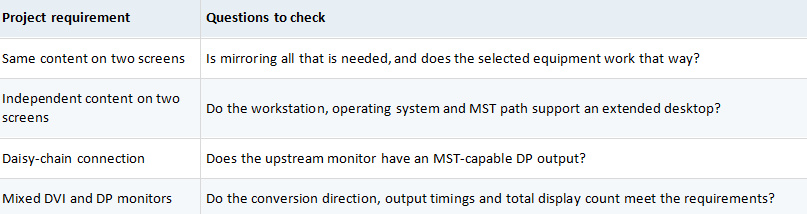
Dual-link DVI describes the configuration of one video connection, not two independent display outputs. A conventional splitter’s mirroring function should not be treated as equivalent to desktop extension.
Choose by equipment and video mode before cable length
Start with the source output and display input, specify the complete video mode, and then select a transmission method for the installed route. The distance bands below help organize an initial comparison. They are not length limits defined by the interface standards or performance guarantees for a particular cable.
Match the connection to the equipment
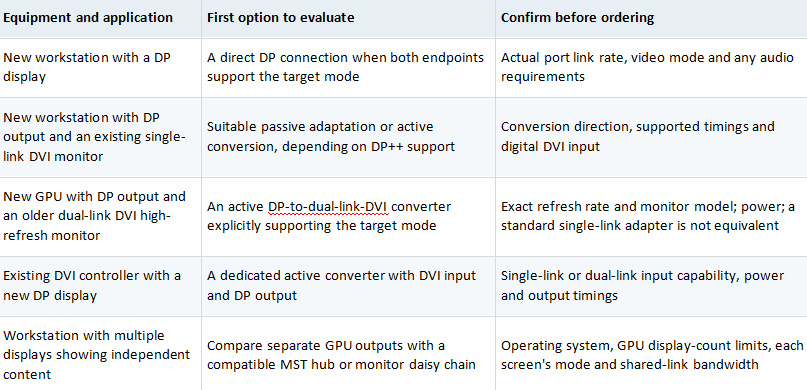
Where the connection uses USB-C ports, also confirm that the computer can output DisplayPort video and that the cable or dock supports the required mode. The USB-C connector shape alone does not establish video-output capability.
Specify the complete video mode
Avoid requests that say only 2K, 4K or high refresh rate. A useful specification is: 3840 x 2160 at 60Hz, RGB 4:4:4, 8-bit color, one display. State whether HDR is required as well. Refresh rate, color depth and color format can change the link requirements even when resolution stays the same.
Compare solutions for the installed distance
Measure the full route, including rack wiring, cable trays, wall routing and service loops. Use the following bands to plan your evaluation rather than assuming that copper fails beyond a particular distance or that every AOC reaches the same length.
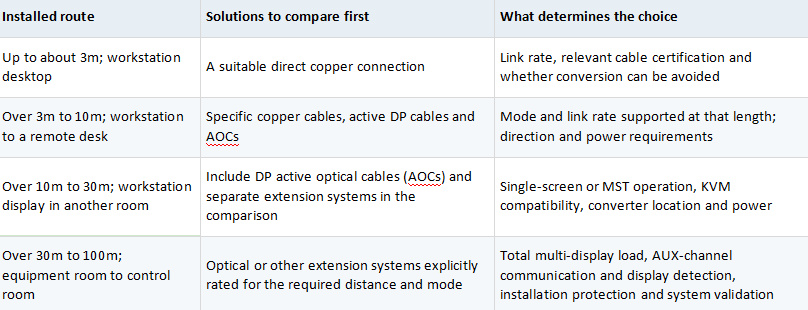
For a mixed DP and DVI installation, map the complete path: workstation output, converter, long-distance segment and display input. Converter placement depends on equipment compatibility, the selected extension system and available power. A DP AOC combined with an arbitrary DP-to-DVI converter is not a validated solution.
Apply all three requirements to the same project
Consider a new workstation with DP output connected to an older dual-link DVI high-refresh monitor 2m away. First verify that the monitor’s target refresh rate requires dual-link DVI. Then evaluate an active DP-to-dual-link-DVI converter supporting that exact mode. A standard DP-to-DVI cable is not an equivalent replacement. Compare the cost of conversion with the cost of moving to a monitor with a suitable DP input.
In another example, a workstation must drive two displays 20m away, each at 3840 x 2160 at 60Hz, as an extended desktop. Compare two independent outputs with a compatible MST solution, then check bandwidth using color depth, color format and the combined load. With separate links, validate each one at 20m and the required mode. With a shared link, also confirm support across the operating system, hub and long-distance segment. These are planning examples rather than tested product combinations.
Send the supplier the equipment models, input and output ports, complete video modes, routed length, intermediate devices, power locations and expected quantity. Include high-refresh, multi-display or protected-content requirements in the acceptance criteria where relevant.
Troubleshoot missing video or unavailable modes
- Identify the source output and display input to rule out an adapter purchased for the wrong direction.
- Use a known-good short direct connection to confirm that the equipment and selected input work.
- Check DP++ support and active or passive operation. If dual-link is needed, confirm actual output capability.
- Start with a basic mode supported at both ends, then try the target mode.
- Check power to active devices, restoring KVMs, switches and long-distance sections one at a time.
- For multiple displays, check mirror or extend settings and MST support separately from single-screen faults.
If a short connection works but the complete system does not, record which added component changes the result. This helps the supplier investigate conversion, power, timing or installation conditions.
Keep a validation record before volume purchasing
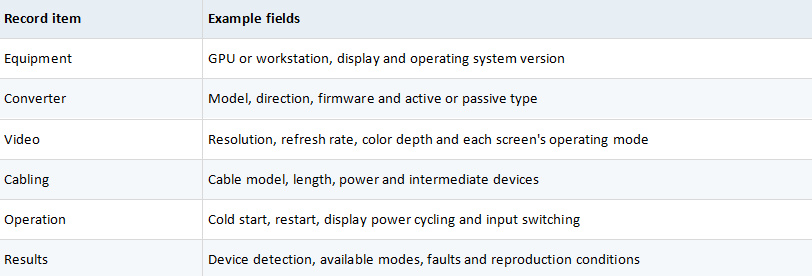
Use this format to document the project evaluation. After sample approval, retain the actual supply configuration so that results are not carried over unchanged when a converter or cable model changes between batches.
Frequently asked questions
Does DisplayPort always deliver a better picture than DVI
With the same content, video mode and properly functioning digital transmission, connector names alone do not determine image detail. DisplayPort’s main advantages concern available modes and functions, which still require equipment support.
Can a DVI to DisplayPort cable be used in reverse
Do not assume so. DP output to DVI input and DVI output to DP input must be checked separately. Specify the input and output direction when purchasing.
Should you replace a DVI monitor when upgrading a workstation
Not necessarily. Keep the display if it meets the task and the conversion solution has been validated. Compare conversion and maintenance costs with the cost of replacing the monitor.
Will an optical cable enable 8K or 144Hz
Not by itself. Using optical fiber does not change the video modes supported by the equipment. The device timings, link configuration and specific cable model still determine which modes are available.
Discuss your cable configuration with Elike
For native DP projects, explore DisplayPort cable solutions. When retaining DVI equipment, explore DVI cable solutions. Send equipment models, port photos, target video modes, display count, conversion path and installed distance to discuss suitable cabling and sample evaluation.