A Troubleshooting Guide for Copper and Fiber Optic HDMI Cables
An HDMI “No Signal” message means the selected input is not receiving a usable video signal. It indicates a connection problem, but does not identify which component is at fault. Possible causes include the wrong input selection, no output from the source device, an unsupported video format, a poor connection, or a problem elsewhere in the signal chain.
Start with the simple checks below. Then use comparison tests to examine the source, display, cable, and any adapters or switching equipment between them. If you use a fiber optic HDMI cable, also check its connection direction, power requirements, and installation conditions.
Start With a One Minute HDMI Check
This short checklist can help you decide what to check next. Restarting equipment or completing a full diagnosis may take longer.
Match the selected input to the physical port. If the cable is plugged into HDMI 2, select HDMI 2 on the TV, monitor, or projector.
Make sure the source is awake and outputting video. Check the status of the computer, media player, game console, or other source device.
Check the connectors at both ends. Follow the equipment instructions and switch devices off first if necessary. Inspect and reseat the connectors without forcing them.
Check the end labels on active cables. For a directional active optical cable, connect SOURCE to the source device and DISPLAY to the screen.
Simplify the connection. Where practical, remove unnecessary adapters, switches, splitters, or AV receivers and connect the source directly to the display.
If there is still no picture, restart the equipment according to the manufacturer’s instructions. Before buying a replacement cable, record exactly when the picture disappears.
Choose the Next Check Based on the Symptoms
Different faults can produce similar symptoms. A connection that never displays a picture calls for different checks from one that goes black only after switching to 4K120.
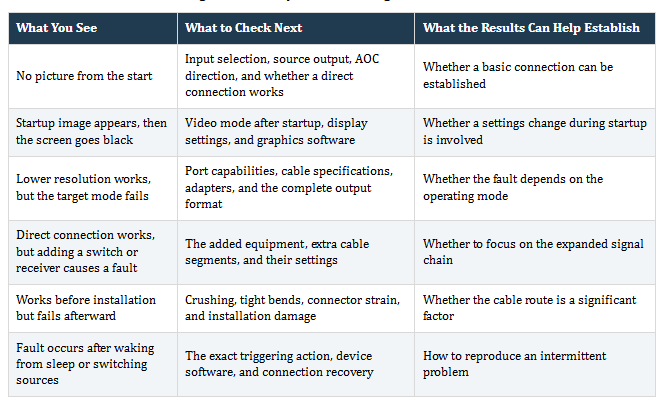
These symptoms can guide your tests, but no single symptom confirms a specific internal fault.
Isolate the Source Display and Cable Step by Step
Before changing the connection, write down the complete signal path. For example:
Laptop → USB-C adapter → HDMI cable → AV receiver → second HDMI cable → projector
Every additional device or connection adds another element to check. Reducing the variables first, then adding devices back one at a time, usually makes the problem easier to isolate.
Establish a Working Direct Connection First
If the devices can be placed together, connect the original source directly to the original display using a known working HDMI cable. Here, “known working” means a cable already confirmed to work in the video mode being tested, rather than simply a new cable.
Start with a video format supported by both the source and the display. If the short direct connection produces a picture, record the source port, display port, and output settings as a baseline for later comparisons.
In an installed long-distance system, a short-cable test may require temporarily moving equipment. A successful test only shows that the shorter baseline connection works. It does not prove the original cable route is sound or that copper is the better transmission method.
Change Only One Variable at a Time
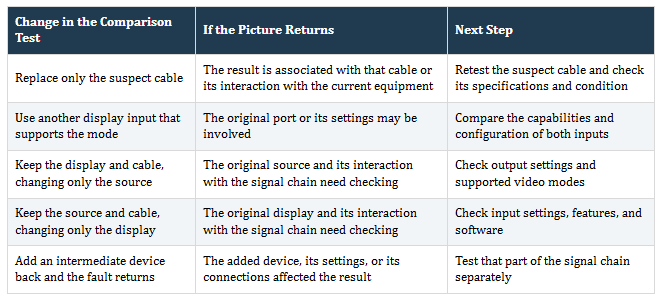
After reconnecting, also record whether the equipment automatically changed the resolution or refresh rate. Otherwise, an apparently successful cable swap may actually compare two different video modes.
Sony’s HDMI troubleshooting instructions also recommend checking the input selection and output format, simplifying the connection, and trying other cables or devices.
How Copper and Fiber Optic HDMI Checks Differ
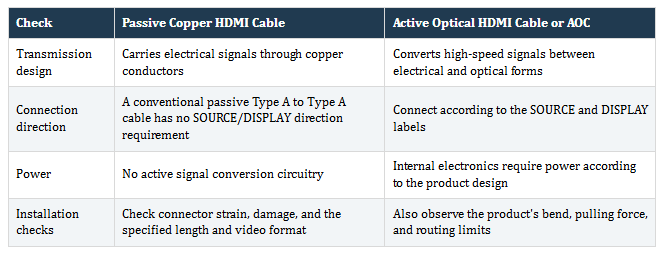
Identical connectors do not mean identical cable construction. Passive copper, active copper, and active optical HDMI cables have different internal designs.
Active copper cables, which contain signal amplification or equalization chips, and active optical cables (AOCs) both contain active electronics. Follow the direction and power instructions for each product.
How to Assess a Copper Cable With No Signal
First confirm the input selection, source output, and supported video format. Then compare the connection against the working baseline, keeping the ports and settings the same.
If the same cable repeatedly causes the fault across several configurations that support the relevant mode, there is reason to consider replacement or further testing. A single black screen does not prove a conductor is broken. An intact outer jacket does not prove the cable’s electrical performance is satisfactory either.
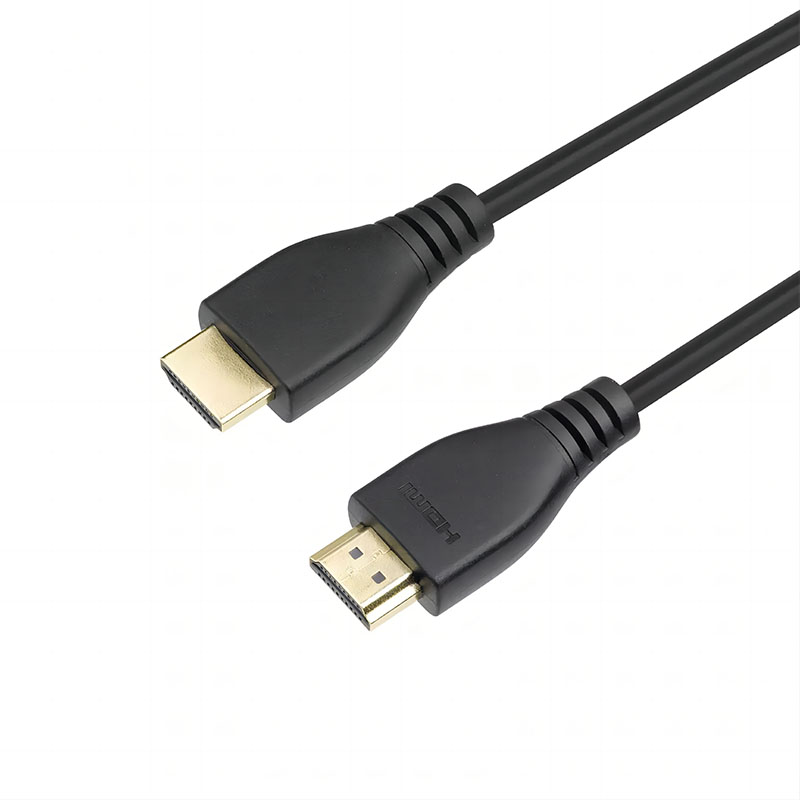
As an example of a short passive copper cable, Smartavlink’s SHOM-2100-0005 Type A to Type A cable is available in a 0.5 m length with a stated bandwidth of 48 Gbps. These are product specifications; compatibility with the equipment in a particular project still needs to be verified.
What to Check First With a Fiber Optic HDMI Cable
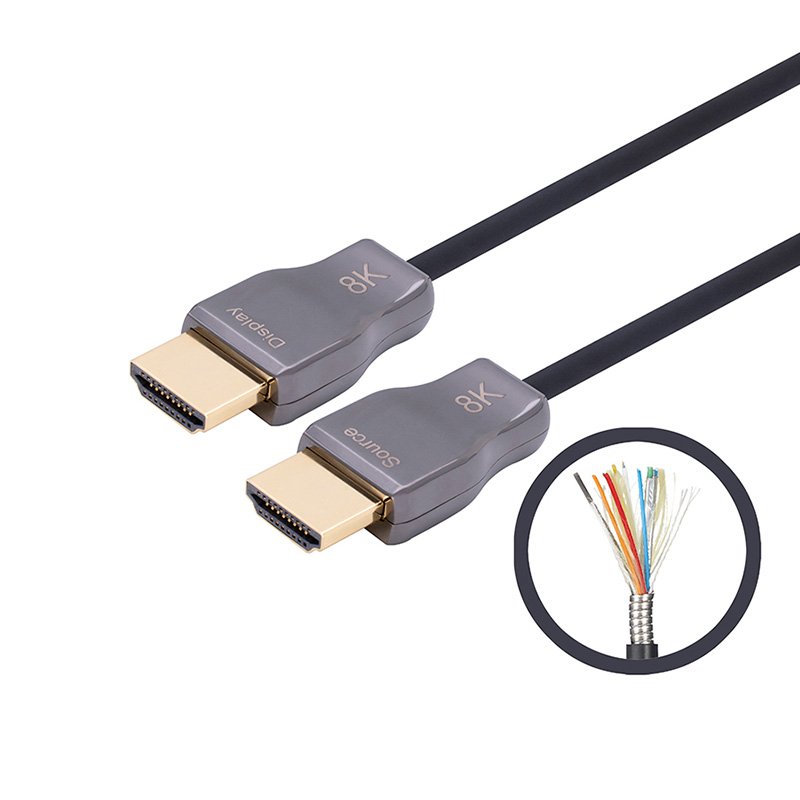
Check the connection direction before changing device settings. Even a firmly seated connector may be connected to the wrong device. The cable labels indicate the direction of the main video signal:
Video source → SOURCE connector → AOC → DISPLAY connector → screen
Next, check the power and installation requirements. An AOC labeled “no external power required” still needs power for its internal electronics. This is normally supplied through the HDMI port, most often at the source end rather than the display end.
HDMI Cable Power is a specific feature that requires both a compatible cable and a source device that supports it. The name “fiber optic HDMI” alone does not establish that a product supports this feature. Do not modify the power connections yourself. For details。
Smartavlink’s SSAC-9860 armored AOC is a 10 m product example with labeled ends and a hybrid construction using optical fibers and copper conductors. Optical transmission does not eliminate every electrical function in the finished cable. The control and power paths must still work correctly.
If the cable worked before installation, remove it from the installed route for comparison testing where practical. Check for tight bends, crushing, pulling, and connectors that cannot seat fully. Armor adds protection, but the product’s installation limits still apply.
What Happens During an HDMI Handshake
“Handshake failure” can describe a connection that has not been established correctly, but it does not identify the cause. Several functions must work together to produce a usable picture.
HPD Detects a Connected Display
HPD stands for Hot Plug Detect. It helps the source recognize that a display is connected. Physically inserting the connector does not guarantee that the source has successfully detected the display.
EDID Describes Display Capabilities
EDID stands for Extended Display Identification Data. It provides the source with information about the display’s capabilities. Think of it as a capability sheet the screen hands to the source. If that information is not read or handled correctly, the source may select an unsuitable mode or fail to output a usable picture.
A receiver, splitter, or switch can also affect the capability information the source reads.
Video Transmission Carries the Selected Mode
The connection must be capable of carrying the selected video format. TMDS and FRL (Fixed Rate Link) are signaling methods used by HDMI. FRL supports higher-bandwidth operating modes, but successful operation in one mode does not guarantee successful operation in another.
DSC stands for Display Stream Compression. If the selected mode uses DSC, the relevant devices must support it. A passive cable does not compress the picture itself.
HDCP Authenticates the Protected Content Playback Chain
HDCP stands for High-bandwidth Digital Content Protection. If the device’s normal interface appears but protected content fails to play, check HDCP support on the relevant devices and ports. This symptom alone still does not identify the faulty component.
When contacting technical support, provide specific symptoms and test results wherever possible. These are more useful than simply saying “there is no handshake.” Engineers may need EDID data, device detection status, or protocol diagnostics to distinguish between these different stages.
Why Lowering the Resolution May Restore the Picture
If you can access the source settings, temporarily select a lower mode supported by both devices, such as 1080p60, and test again. If the only screen is already black, use another working display, a laptop’s built-in screen, or the equipment manufacturer’s display recovery procedure. For PS5,
Once the picture returns, increase the settings gradually and record the point at which the fault appears. Do not record only “4K.” Also include:
Resolution and refresh rate, such as 3840 × 2160 at 60 Hz or 120 Hz.
RGB or YCbCr, including the applicable chroma subsampling format.
Color bit depth and HDR status.
DSC status and the actual link mode, when the equipment can display this information.
Lowering the video format may change more than the required data rate. It can also change the transmission mode or the way devices negotiate the connection. A picture returning at 1080p helps narrow the investigation, but does not prove the cable is damaged.
Also check the capabilities of the specific ports and whether the equipment requires a particular enhanced input setting to be enabled. A cable’s stated specifications cannot give a source, display, adapter, or receiver support for a video mode it does not have.
Additional Checks for Laptops Monitors and Adapters
Windows users should confirm that external display output is enabled. Press Windows + P to open the projection options and select the required display mode. If the connection includes a dock or adapter, test a direct connection where practical. For further steps, see Microsoft’s external monitor troubleshooting guide.
Mac users should check how many external displays their specific model supports, along with the supported resolutions and refresh rates. The cable or adapter may also limit the available modes. Apple recommends bypassing a hub or dock where possible and checking the capabilities of the complete connection.
For any adapter, check its connection direction, video output functionality, and output capabilities. A connector that fits does not establish compatibility. If the problem began after a software change, record that change and follow the equipment manufacturer’s relevant update or recovery instructions.
What Brand Purchasing and OEM Teams Should Validate
For purchasing teams, getting a picture on screen is only the starting point for validation. Testing should cover the equipment, installation conditions, and operating procedures the finished product will encounter.
Keep the following records for each test configuration:
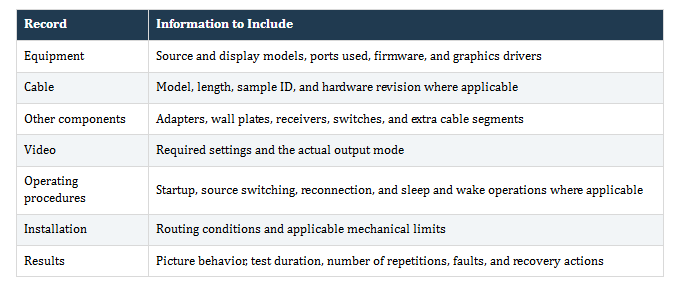
Compare the target mode with the actual result. For example, a picture at 4K60 does not meet a 4K120 requirement. A successful startup test also does not establish that the connection will work after waking from sleep.
When making adjustments, retain the original fault record and repeat the test using the same method. This gives purchasing and engineering teams a traceable basis for their decisions and helps suppliers reproduce the problem.
Frequently Asked Questions
Can the Same HDMI Cable Work With One Device but Fail With Another
Yes. Devices can differ in their ports, supported formats, settings, and interaction with active cables or intermediate equipment. Before deciding that a device or cable is faulty, record both configurations and compare the video modes actually in use.
Is There a Universal Maximum Length for HDMI Cables
There is no single distance that describes all HDMI cables across different constructions and video formats. Check the specific model, length, and required functions. HDMI LA’s cable guide explains the cable categories, but a category name alone cannot confirm that an installed system will work correctly.
Does AOC Video Directionality Affect ARC or eARC Audio Return
Not necessarily. A cable can have a directional main video path while separately supporting audio return. Check the specific model and the lengths over which ARC/eARC is supported. Connect SOURCE and DISPLAY according to the product instructions; do not reverse the cable to follow the direction of the audio return signal.
Should a Copper Cable With No Signal Be Replaced With Fiber Optic HDMI
Isolate the problem first. Fiber may suit longer installations, but changing the transmission technology cannot correct the wrong input selection or add a video mode the equipment does not support. Choose a replacement based on confirmed requirements.
Get Support for Connection Issues or OEM Cable Projects
If the problem persists, provide Elike with the device models, complete signal path, cable model and length, target video format, and results of the checks above. Photos of the connector labels and a short video of the fault can also help explain the problem.
Submit connection issues through the technical contact form. For OEM customization,